Tuesday, June 12, 2012

Comparing Verizon shared data pricing


Ok so Verizon has announced its shared data pricing.  On June 28, 2012 you will now be able to share a data plan across multiple phones much like you already can share text messages or voice minutes (think like a “Family Share” plan.)

The question quickly becomes, for someone like me, that does have multiple phones on a single Family Share plan, will sharing the cost of data instead of paying for data on each phone save me money?

Here we go.

Let’s assume you have two smart phones (like an iPhone or an Android.)

On AT&T currently you would pay monthly:
$69.99 for 700 shared minutes with rollover minutes.
$30 for unlimited texting shared across all phones.
$30 for 3GB of data for your first phone.
$30 for 3GB of data for your second phone.

That’s a monthly cost of $159.99 and remember AT&T does not include a hotspot feature with the $30 a month data plan. 

On Verizon currently (without shared data) this same setup would look like this:
$69.98 for 700 shared minutes.
$30 for unlimited texting shared across all phones.
$30 for 2GB of data for your first phone.
$30 for 2GB of data for your second phone.

That’s a monthly cost of $159.98.  1¢ less than AT&T but 1GB less of data for each phone. Like AT&T, Verizon does not include a hotspot feature with the $30 a month data plan. 

Now let’s see how much Verizon with shared data will cost:
$70 for 4GB of shared data (you could go as low as 1GB for $50 but I tried to keep the plans close in data capacities)
$40 for unlimited minutes and text messages on the first phone
$40 for unlimited minutes and text messages on the second phone

That’s a monthly cost of $150.  A savings of just under $10 from the non-shared data plan.  And if you could drop your data to 1GB or 2GB you could save an additional $20 or $10 a month respectively.  Also it appears Verizon includes the Mobile Hotspot feature on the shared data plans which it didn’t with the non-shared data plan we chose above.

Let’s look at one other scenario that actually mimics my current phone plan:

Now let's assume you have two smartphones like an iPhone and one basic phone that has no data or texting.

On AT&T currently you would pay monthly:
$69.99 for 700 shared minutes with rollover minutes.
$30 for unlimited texting shared across all phones.
$30 for 3GB of data for your first phone.
$30 for 3GB of data for your second phone.
$9.99 for the non-smartphone.

That’s a monthly cost of $169.98.

On Verizon currently (without shared data) this same setup would look like this:
$69.98 for 700 shared minutes.
$30 for unlimited texting shared across all phones.
$30 for 2GB of data for your first phone.
$30 for 2GB of data for your second phone.
$9.99 for the non-smartphone.

That’s a monthly cost of $169.97.  1¢ less than AT&T but 1GB less of data for each phone.

Now let’s see how much Verizon with shared data will cost:
$70 for 4GB of shared data (you could go as low as 1GB for $50 but I tried to keep the plans close in data capacities)
$40 for unlimited minutes and text messages on the first phone
$40 for unlimited minutes and text messages on the second phone
$30 for the non-smartphone.

That’s a monthly cost of $180.  That’s an increase of $10 from the non-shared data plan. If you could drop your data to 1GB or 2GB you could save an additional $10 or break even with the monthly cost of the non-shared data plan.  Also it appears Verizon includes the Mobile Hotspot feature on the shared data plans which it didn’t with the non-shared data plan we chose above.

So what's the conclusion here?  If you have any non-smartphones on your shared plan it will probably cost you more to go to shared data because they are increasing the cost per phone. This may encourage people to move away from basic phones and use smartphones. I'm sure Verizon would like that as they make more off of smart phones. This is also reflected in their basic phone offerings. They barely offer any basic phones and often charge $80 or more for these phones that provide little functionality outside of making and receiving calls.  However, if you have all smartphones it looks like it might save you a little money.  Interestingly the differences are around $10 a month.  Those actuaries at Verizon juggled the numbers so no matter how you arrange your plan, they make pretty much the same amount of money but did you expect anything different?

My biggest disappointment is in how much a non-data basic phone adds to the monthly fee.  With the previous Family Share plan, that line was $9.99 a month.  With the data sharing plan (and remember this basic phone won't use/cannot access the data portion of this plan) that line now costs $30 month.  Another way to look at it is currently, an additional smartphone costs $9.99 + $30 for data whereas a basic phone just adds $9.99 per month.  On the new plan a basic phone costs $30 per month whereas an additional smartphone costs only $10 more at $40 per month.  You could look at it like you pay $30 per line (as opposed to $9.99) and $10 for data (as opposed to $30.)


You can view the Verizon shared data plan details yourself here.

Monday, June 04, 2012

When Naming a Group on Facebook, don't use & (an ampersand)

Although Facebook will happily allow you to create a group with an ampersand & in the name you cannot search on it.

Let's say, for example, you created a new Facebook group or page called:  "A and B - Sales & Service"

Then you typed the exact phrase "A and B - Sales & Service" into Facebook's search field.  You would be disappointed to find the search results are 0.

You see, the & is a valid character in a group or page name on Facebook, however, it breaks the Facebook search routine.  So, continuing with this example, if you instead typed "A and B - Sales" It would find your group successfully.

Something to keep in mind when naming your next product or interest on Facebook.

Tuesday, August 02, 2011

EDID Reader for Windows that Works

Chances are if you need to read the EDID information stored in a display you are already frustrated. Usually you only need to see this low level information if something isn't displaying correctly. The last think you want to do is download multiple applications that claim to extract the EDID information only to find they do not work correctly or at all.

So I've done the searching and experimenting for you and if you are on Windows (specifically I was on Windows 7 64bit but this should work on most versions of Windows) I recommend the free Extron EDID Manager that can be found here.

Monday, September 06, 2010

Applications Allowed in Parental Controls don't Show Up

Parental Controls are a nice integrated feature of Mac OS X. The problem is they have some problems.

This article specifically addresses when you allow specific applications for a restricted user but they still do not appear available to the user.

I’ve been fighting this issue for nearly a year. Sometimes I’ll add a new application for my child (usually a game or educational application) via the Parental Controls control panel only to find the application is never made available to my child. There are tons of posts that span several years and different versions of Mac OS X describing this problem and a few suggestions that never worked for me. After a particularly frustrating day I decided to determine what was causing the issue. The good news is I did find the cause and offer a solution here...

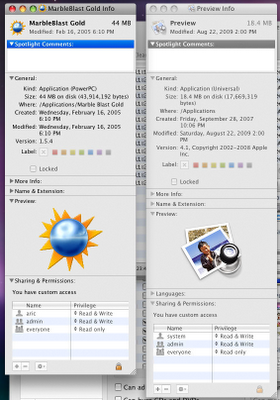
I tried a lot of things that didn’t work including reading the console log entries, reinstalling software, running Disk Utility and repairing permissions. Finally I started comparing an application that behaved as it should and one that refused to show up. Here’s a picture showing the comparison.
Preview behaved as it should and MarbleBlast Gold would not. BTW my username and main admin account on this machine is “aric.”

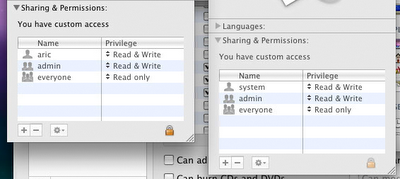
See the difference? Preview is set to system: Read& Write whereas MarbleBlast is set to aric: Read&Write.

For the record I had run repair permissions multiple times so this is apparently a permission issue that is not corrected by Disk Utility.

So we’ve identified the problem… what’s the easiest way to fix it if Disk Utility doesn’t do the trick?

Instead of working on the individual applications and manually adding system: Read&Write (which should work if you only have one application to fix.)

  1. I recommend selecting the Applications folder and doing a Get Info (either command I or File->Get Info). You should see permissions similar to those shown on my Preview application consisting of system, admin, and everyone.
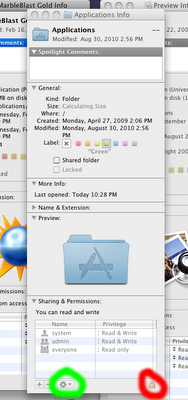
  2. Now click the lock in the lower corner of the Info window for the Applications folder so you can make changes. I show it circled in red in the picture below. It should ask for your admin password.
  3. After that you should have access to the permission settings. We don’t want to change the permissions for this folder but we do want to use a feature here.
  4. Now click on the Gear icon at the bottom of the same window. I show it circled in green in the picture below. A drop down menu should appear with an option called “Apply to enclosed items…” Go ahead and select that.
  5. Now on my computer applying that setting took several minutes so be prepared to let it run until it is finished. You’ve really solved the problem at this point.
Parental Controls seems to cache permission data sometimes so I recommend rebooting the system now too. After that everything should work as you expect! Unless you run into Parental Control Issues with applications due to creator problems which I’ll save for another blog post.


Tuesday, June 01, 2010

iPhone forces you to double accept appointments you already accepted in Outlook

Ok, so here are the symptoms. Your iPhone is setup to get/send email and appointments with your corporate MS Exchange server. You use MS Outlook as your email and calendar application on your Windows machine at the office.

If you get a meeting invitation it shows up on your iPhone calendar notifications as well as Outlook. If you accept it on your iPhone everything is fine and Outlook understands it's been accepted. However if you accept it from Outlook your iPhone won't realize it's been accepted and will still show it as a notification and an unaccepted meeting in your calendar. You then have to accept it from your iPhone which sends an additional accept notification to the meeting creator causing them to think you are an idiot.

As I searched the web for a solution I found convoluted answers about Exchange not being setup correctly, MS and Apple bugs, etc.

There was another clue to my issue. Two other co-workers with iPhones were not having this behavior so it was somehow specific to my setup.

It turns out this is a bug in the iPhone if you have Outlook setup to keep meeting requests in your inbox after accepting/declining. You see by default (and most users keep their default settings) Outlook will remove a meeting invite from your inbox once you respond. At that point the only way to find that meeting is in your calendar and no longer in your inbox. This can be annoying if a meeting request had an attachment and you didn't remember the date of the meeting and need to open the attachment. So whenever I get a new work PC with Outlook one of the first things I do is change that default setting to leave meeting requests in the inbox.

Apparently the iPhone uses that information to determine if you've accepted/responded/denied a meeting request. This appears to be a bug in the iPhone as it assumes the user hasn't changed their email settings in Outlook.

To get the iPhone to recognize that a meeting request has been responded to in Outlook so it stops asking you to accept/decline, do the following in Outlook (This should work for Outlook 2003 and 2007, not sure about other versions): Go to Tools->Options->Email Options->Advanced Email Options. Look for the item called "Delete meeting request form Inbox when responding" and make sure it is selected.

If it was already selected then you have a different issue then I did. This has solved my problem 100%.

Wednesday, May 12, 2010

Unlink YouTube and Google Account or Gmail passwords

Hey so the last time I tried to log into my YouTube account it said:

Sign in with your YouTube or Google Account.

So I tried using my YouTube account that I've had for years, but then it said:

Please use your Google Account. We no longer support signing in with your old YouTube password.

So apparently Google linked my Google/Gmail account with my YouTube account. I don't remember asking it to and it sure doesn't seem like something I would want considering I've had the same YouTube login since early 2007. Anyway if you run into this situation you can unlink your two accounts by following the link below.


Good luck!

Tuesday, March 30, 2010

iPhone heads to Verizon?

The iPhone becoming available on Verizon in the U.S. has been an ongoing rumor for the last few years. A new iPhone is always released in June and leading up to June the rumors start to fly. Supposedly the sources this time are "more accurate" so it's possible but don't get your hopes up. Also it *is* understood that AT&T's exclusive contract runs out this year so that may indicate more of a chance as well...

To keep some perspective I've posted the rumor as it has appeared over the past few years...

Here's the same rumor in October 2007:

Here's the same rumor in September 2008:

Here's the same rumor in November 2009:

Long story short... I'll believe it when I see it (or rather when Steve Jobs says so.)

Monday, November 16, 2009

My favorite Regular Expression for deleting a line at a time

Ok, so you probably know the power of regular expressions or regex. One of the great things about regex is that with most modern text editors (and even some old classic ones) you can use them to do quick editing over a large file.

My favorite (and this will work in Visual Studio) is for removing lines at a time based on some match.

Let's say we want to select (most likely for removal) any line from a file that has the word Bart in it. Our regex would look like this:

^.*Bart.*$\n

The \n indicates new line. If you left off the \n the line would be selected without the new line character. If you are doing a replacement (such as with nothing to delete the line) and leave off the \n the line is selected but not the return character so for removing the text, a blank line would still exist in the file, whereas including the \n will delete the entire line from the file.

Monday, November 09, 2009

Snow Leopard Doesn't Support Some Epson Printers

UPDATED: See update below...

Well I wish I had known this before I upgraded to Mac OS X Snow Leopard.

Apparently Epson hasn't released drivers for some of its more expensive "pro" printers such as my Epson Stylus Photo 2200. It appears the same is true for the 1280 and 2100 and probably others as well.

Epson has stated they will release a new printer driver by the end of January 2010 that will be distributed by Apple as a software update.

The current version of Mac OS X Snow Leopard (10.6.2) includes the open source Gutenprint driver for these printers, however, most people report that either they don't work, or the colors are so off that they are useless.

For a list of Epson (and other) printers supported with native drivers in Snow Leopard you can go here. If the driver lists Gutenprint next to the printer name (i.e. Epson Stylus Photo 2200 - Gutenprint v5.2.3) you know that the manufacturer hasn't developed a native Snow Leopard printer driver yet and your printing results may vary.

BTW you may find the printer driver on Epson's website here that claims it is compatible with Mac OS X Snow Leopard 10.6. That file is identical to the older printer driver that worked under 10.5 and is not a new one that fixes color issues in 10.6. Epson has stated multiple times that the new version will be available through Apple's software update and not a download from their website.

UPDATED: January 3rd 2010

Well it appears they've released the update. Oddly it doesn't appear during the Apple Software Updates but through the new printer driver update facility that Apple added to Snow Leopard. Now you might be wondering how to get the update to appear? Well, mine showed up automatically when I plugged in the USB cable of the printer to the computer. Immediately I got a dialog saying updated drivers existed and asked if I wanted to download them. Note that I had already uninstalled the non-working Gutenprint drivers, so if you were using those, I have no idea if you would get the update notification. I hope you would.

After downloading it automatically added the printer, and I was able to print. I haven't done any detailed photo printing but printed a few color pages on plain paper the colors looked good. So good luck to you and thank you Epson for living up to your word. It would've been better if you had these drivers available when Snow Leopard shipped but better late then never. You can see several printers have been added here to the list here with a + which indicates the Vendor software was recently added via software update.


Friday, November 06, 2009

Clicking HTTP URL Links in Outlook 2003 on Windows opens two browser windows in Safari

I've seen this happen in both Safari and Firefox. This fix is specific to Safari although the Firefox fix is probably similar.
If you open explorer.exe (the Windows file manager, you can just double click "My Computer" or "My Documents" to get an explorer window) then go into
1) Tools->Folder Options...
2) Then click the File Types tab.
3) I scrolled down and found two entries for:
(NONE) Safari URL
As you can see from the picture, the Delete button was grayed out so I couldn't delete one of them.
4) I selected one of them and clicked Advanced.
In the Actions list was a single entry named "open"

5) I selected that action and clicked Remove.
After that I only get one window in Safari when I click links in Outlook 2003.
I've gotten some feedback from other users (including Firefox) that this isn't always the problem/solution so I'm adding another step here.
You may have to remove the DDE entry. Follow the steps above 1-4. Select "open" and click Edit...

If you see anything in the DDE Message area, just clear it out and click OK.

Wednesday, September 09, 2009

iTunes 9 Released, new version of Fetch Art coming soon

Today Apple released iTunes 9. I am currently testing a new version of Fetch Art and should know about compatibility with iTunes 9 and have a new version with some bug fixes available in about a week.

Wednesday, August 26, 2009

Robocopy trumps RichCopy

Microsoft has released a new replacement for Robocopy. What's Robocopy you ask? Only about the best way to copy a lot of files across a network via the command line in Windows.

Robocopy will copy a directory with any amount of files and subdirectories. It will merge the contents of the directories if duplicates already exist in the destination depending on options you pass it. If a file cannot be read, it will pause and retry a certain number of times, and if you lose your network connection during the copy, when your connection is back, you can reissue the same command, and it will pick up where it left off, not recopying the files it already copied.

It's a really great command line tool and I wish drag and drop copying in both Windows and Mac OS X behaved like this instead of failing miserably if the network drops or wiping destination directories out even if they contain different files from the source.

Robocopy is great. It's one of the first things I install on a freshly formatted Windows box.

So what could be better then Robocopy? According to Microsoft TechNet, RichCopy. RichCopy is the next generation Robocopy adding an easy to use GUI and performance enhancing multithreaded copying (so it can move more then one file at a time which reduces network lag if you are moving a lot of small files.)

So today I installed RichCopy and put it to the test. I needed to move a directory that had 19.8GB in 69,510 files and 13,654 directories (or folders if you prefer.) I started RichCopy and used its GUI interface to start the copy. My network performance was only about 10Mbps (I'm on gigabit people) but it's an overworked corporate network, so I don't think that's any fault of RichCopy. Unfortunately about an hour and 45 minutes into the job, the server disappeared from the network for a second. No problem, right? That's the kind of thing RichCopy was made to handle. Unfortunately at that point RichCopy crashed with an exception, and the only option was to close the exception dialog which closed the RichCopy application.

So now I've got Robocopy doing the copy. It doesn't have a fancy GUI but it's working.

Oh BTW, there is also a GUI for Robocopy here. But I tried it and it had at least one bug (back when I tried it.) It may work for you, but, if you are looking for a robust copy tool, chances are you can handle the command line anyway.

Here's something to get you started on Robocopy:

robocopy source destination /S

By default robocopy won't copy files that appear the same so it always performs a merge and that's what this command line will to. The /S says to be recursive but don't copy empty directories.

The Wikipedia entry on Robocopy covers all the optional parameters.

Tuesday, August 25, 2009

Fixing Printer Sharing in Mac OS X

Ok, so an odd thing happened trying to print the other day. I share a USB printer from my Mac to other computers on the network. After unplugging the USB cable from my Mac at one point to move some stuff on my desk and then plugging it back into the same Mac, printer sharing for this printer no longer worked.

Symptoms:
I could print fine from the computer connected directly to the printer via the USB port. I share it with three other computers and none of them could print to the printer, although they could see it on the network.

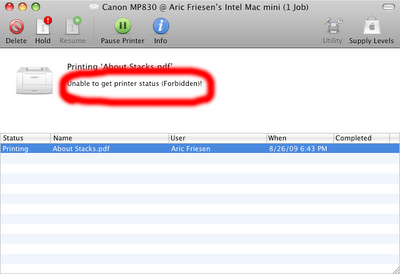
When I tried to print from a networked printer the document would simply never print. When I opened the printer queue on the computer I was trying to print from it said:

Unable to get printer status (Forbidden)!
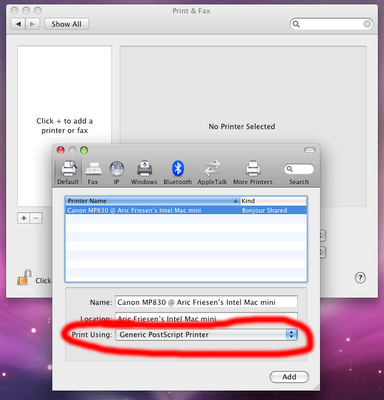
Also if I tried to add the printer to a computer that wasn't using it previously, although the computer could see the printer, it could never choose the correct printer driver.

Here’s the fix:
On the computer sharing the printer (the one the printer is connected to) you have to reset the printing system. Just open Print & Fax in System Preferences and right click in the list of printers and chose “Reset printing system…”

It will ask you if you are sure, and you’ll have to supply an administrator password. That will remove all your printers.

Then you can click the + button and add them manually, however, I found it was easier to power cycle my printer and it was automatically added to the list. Make sure to check Share this printer and you may have to turn on Printer Sharing in the Sharing control panel too. The Print & Fax control panel should notify you if Printer Sharing is not enabled.

You may have to remove and re-add the shared printer on any of your networked computers you wish to print from. Two of my computers started printing to the printer with no problems, but one of them had selected the wrong driver (a generic postscript driver.) You could tell it was wrong because the printer icon didn’t match the one on the computer that the printer is connected to.


It could still print ok with the wrong driver but it couldn’t access any of the printer’s settings such as paper type or print quality.

Here’s things I tried that didn’t work:
  1. Turning off and on printer sharing.
  2. Deleting the printer from the computer I wanted to print from and re-adding it.
  3. Repairing permissions on the computer sharing the printer
  4. Printing from another computer that could see the shared printer. It behaved the same from three different computers.

Monday, June 22, 2009

iPhone 3GS, 3G, and original iPhone Comparison

A lot of people are talking about "new" features of the iPhone 3G S, however, many sites listing new features are listing items that exist for previous generation iPhones as well. Also, several sites are only comparing the new 3G S to last years 3G and not even including the original Edge only iPhone in their comparisons. So I felt the need to put together this table.

Hardware Differences

Original

3G

3G S

Metal back

plastic back, more curved shape

Recessed headphone jack

standard headphone jack

No stereo Bluetooth headphone support

Stereo Bluetooth headphone support

Edge

3G (3.6Mb/s HSDPA)*

3GS (faster 7.2Mb/s HSDPA)**

No GPS (simulates using triangulation=very inaccurate and often unavailable)

GPS

GPS + Compass (should allow turn by turn directions in future software)

No video

640x480 30fps video (fixed focus during recording)

2MP fixed focus Camera

3MP auto focus camera

Original CPU

Faster CPU

Original graphics

Faster 3D graphics

Powered by old iPod chargers****

Powered only by newer chargers****

Supports 1 button inline headphone remote

Supports 3 button inline headphone remote including volume control

No voice dialing

Voice Control

No tethering

Tethering**

No MMS

MMS**

No Nike + iPod

Nike + iPod built in


New features added with the free 3.0 software update to all iPhones

Original

3G

3G S

Cut, Copy and Paste

same

same

Global Search

same

same

Horizontal keyboard in most apps

same

same

Voice memos

same

same

Notes sync with Mail/Outlook

same

same


Notes:
* Some reports state that AT&T artificially limits 3G access to 1.4 Mbps instead of allowing the full 3.6Mbps HSDPA speed.
** Not available in the US with AT&T yet.
**** The original iPhone supported the 12 volt charging (as did older iPods) and many car chargers only supplied that voltage. The 3G and 3G S require newer chargers that do not rely on the old specification.


Wednesday, April 29, 2009

How UPnP failed me and Bonjour for Windows saved me.

Today I am working in an entirely Windows XP environment. Not a Mac to be found. However, it was Apple software that saved me.

It might seem strange to be extolling the virtues of Apple software on Windows, and believe me, if the Windows UPnP software worked as it is supposed to, I probably wouldn't be doing this, but if you find yourself in the same situation this article might help you.

We just got a new Axis Q1755 network camera. It supports Universal Plug and Play or UPnP. It also supports Bonjour which it turns out is very lucky for me. I connected the camera to our network. At that point, as a UPnP device it is supposed to show up on my Windows XP computer inside My Network Places. I opened My Network Places, and it wasn't there.

I found an article that said Windows Firewall can interfere with UPnP devices. However, since I'm on an internal network, I have my Firewall turned off.

I found another article that mentioned that by default Windows XP might not have all the needed UPnP software installed. I went into Control Panels->Add or Remove Programs. I clicked the Add/Remove Windows Components button. I clicked Networking Services. Then I clicked Details… I saw that UPnP User Interface was not checked, so I checked it to install it. Clicked OK, then Next, then Finish which installed the UPnP components. Opened My Network Places again, but still nothing.

I found yet another article that said I might need to enable the UPnP discovery service. So I went into Control Panels->Administration Tools->Services and looked for the SSDP Discovery Service. Sure enough, it was disabled. I enabled it and started it. I verified its status changed to Started. Closed the Services control panel. Opened My Network Places again, and still nothing.

Now I've already wasted 10 minutes on something that was supposed to be Plug and Play. Then I noticed in the setup manual of the camera it also supports Bonjour for Mac OS X. Hmmm I know Apple released Bonjour for Windows too. It can't work any worse then this, and if it takes less then 10 minutes it's a more efficient use of my time. So I go to the Apple website and download Bonjour for Windows. It installs a new button on the Explorer Bar in Internet Explorer. I click that button and it immediately finds three devices on my network. Two printers, and my new Axis camera. I click on the camera and have full access to it.

So I gotta' say, I'm liking Bonjour for Windows.

Tuesday, March 17, 2009

iPhone OS 3.0 Adds a lot of features

In my previous post: iPhone 3G, still missing features I discussed the features introduced by the 2.0 version of the iPhone OS that shipped with the second generation 3G iPhone.

There were a lot of (what I considered obvious) omissions. Let's review those now that Apple released what they will be adding to the next generation of the iPhone OS in June:
  1. Stereo Bluetooth headset support (A2DP) (not on first generation iPhone as it lacks some hardware)
  2. Copy and Paste
  3. Global search (they let you search contacts now, but not notes or calendars, Palm OS has had this for years!)
  4. DUN tethering (so I can use the phone as a 3G modem on my laptop either over Bluetooth, or preferably, USB) (They claim they are adding this in 3.0, however, not all the carriers are ready to enable it...)
  5. Notes syncing (on Windows and Mac OS X)
  6. MMS (picture messaging, so far they still only support text messaging)
  7. Chat/IM support for popular chat apps (MSN Live Messenger, AIM, GTalk, etc.) (With push support finally arriving this appears to be solved.)
  8. API for turn by turn GPS (although Apple will not be supplying maps, so this will have to be 3rd party.)

The following items still won't be added:
  1. Video recording
  2. A ToDo app with syncing with Outlook (on Windows) or iCal (on Mac OS X)
  3. Voice activated dialing
  4. Syncing music/video/podcasts and calendar data over Bluetooth or WiFi. Why should I have to connect a USB cable just to sync?
  5. Forward camera and video chat support
  6. Undo in most apps (something PalmOS apps have had for over a decade)
  7. Bluetooth support for keyboards and standard devices other then headsets and headphones.
So all in all a pretty decent update. They've also added several features that were not in my wish list such as auto discovery of nearby iPhones for gaming etc. I'd say they addressed most of the items on my list I would classify as most important (Thank goodness for copy, cut and paste!)

Wednesday, February 18, 2009

Disk Utility Erase Failed on Mac OS X

Ok, I'm always running out of hard drive space. I just bought a $100 one terabyte external USB 2.0 and eSATA drive to add to my current pile of external hard drives.

Of course it ships formatted FAT32 which Mac OS X can read, but isn't a very good format (doesn't support journaling, limits file sizes to 4 gigs, etc.) So we need to erase and format the drive (or partition or reformat... whatever you want to call it.)

No problem. I launch Disk Utility, select the new drive, and click the Erase tab. Then I select Mac OS Extended (Journaled) as the Volume Format. Then I click Erase. It warns me I'll delete data, blah blah. It starts erasing, and then says the erase failed. Specifically it says:
Volume Erase Failed with error: The underlying task reported failure on exit

After a few more tries I found the solution and it requires changing a setting in the partition. We only want to create a single large partition but we still have to change a setting in the Partition tab.

If you don't see a Partition tab between Erase and RAID try selecting the drive in the list to the left. You may have selected the mount point (or sub volume/partition). To edit the partitions you have the have the higher level drive device media selected.

Ok, after that, click the Partition tab, then select 1 Partition from the Volume Scheme drop down menu. Then click the Options button. Chances are Master Boot Record is selected. You don't want that for a Mac OS Extended format drive. Instead select the GUID Partition Table and click OK (You only want to choose the Apple Partition Map if you are running on a PowerPC Mac with an OS below Mac OS X 10.4 or if you are running a PowerPC Mac and you need the disk to be a startup disk.)

Then click Apply. That should do it.

UPDATE:
I haven't been able to reproduce this problem since the Mac OS X 10.6.3 update. If you have this issue and you are running 10.6.3 or newer could you please let me know with a comment below? Thanks!

Thursday, December 04, 2008

QuickTime and a decompressor are needed to see this picture.

So you've been laboring over that PowerPoint presentation or Word document on your Mac for hours or even days.  When it was time for final delivery you opened it up on a Windows OS based computer under Office 2003 or Vista or some other version and found that wherever you put a picture the image isn't displaying and instead it just says
QuickTime and a decompressor are needed to see this picture.
or
QuickTime and a TIFF (Uncompressed) decompressor are needed to see this picture.

Also note that the file compatibility toolbox on the Mac version will not warn you of this issue when that's the whole point of that toolbox.  As far as Office for Mac is concerned, the file will be 100% compatible with Office for Windows.

I'll first explain what causes this problem and then we'll talk about a fix.

So the only time you will see this is if you were woking in Office on the Mac, added pictures to your document via either drag and drop or copy and paste, and then open your document in Office for Windows.

Ok so what causes this issue?

The truth is it is a bug in how Office for the Mac supported drag and drop and copy and paste.  It used a Mac OS Specific way of embedding the image that Office for Windows can't understand.  Even if you install QuickTime in Windows, Office for Windows still can't make sense of the image information.  This bug was finally fixed with the Mac Office 2008 Service Pack 1 (12.1.0)

Great, what's the solution?

If you've created/edited the document using Office 2008 with SP1 (or a newer version since that one) you shouldn't have the problem.  If you've created the document in an older version of Office for Mac, then as long as you have access to Office 2008 with SP 1 or newer all you have to do is open and save the document in the newer version of Office for Mac and the problem will be fixed.  It says so here, and I've verified it worked.

Another solution that I've tested is to import images using the Insert menu instead of using drag and drop or copy and paste.  Yes that means if you are trying to use an image from the Web, you must save it from your web browser to your computer's disk first, then import it into Word.  In fact, you can safely drag and drop an image file from your computer's disk drive (from a window in the Finder) to Word and it works fine.  It's only if you drag and drop (or copy and paste) an image from your Web browser or another application and drop it into Word that causes the issue.  

Another solution is provided here by Stephen Rindsberg.  He provides some VBA code that you could run on a problematic document in Mac Office 2004.  I tried it and it worked...some.  I found it fixed about 70% of the images, but several were still not working in Office for Windows.  Also any image it fixed it brought to the front of the document, so for example, if you had a back ground image in a PowerPoint file, after running the VBA code, now it would appear in front of all of the text on that slide.

So the best solution seems to be to use the latest version of Office for the Mac 2008 or always import your graphics files from local copies on your computer's drive.  BTW If you need to use Office 2004 (for example you need support for VBA which was dropped in 2008) you will be happy to know you can safely install 2008 on a Mac that has 2004 (as I indicated in my previous blog entry about why I'm still using 2004), and at the end the installer will ask you if you want to remove 2004.  Just say NO and both 2004 and 2008 will exists happily together on the same Mac.  

This doesn't cover movie files, only images...
If you are searching you may find this Microsoft Support article: You receive a "QuickTime and a Video decompressor are needed to see this picture" error message when you try to play a movie in a slide view in PowerPoint  Although the description of the problem seems similar, it's a different situation and is specific to movie files and not images.


Monday, December 01, 2008

Why not to upgrade to Office 2008 for Mac and to keep using Office 2004

Ok, so when Mac Office 2008 came out this year, I was pretty happy to upgrade.  After all, 2004 was four years old, and because I had an Intel Mac it had to run under Rosetta which means it ran pretty slow.

Office 2008 promised faster speeds for Intel Mac owners as well as more formatting options and file compatibility with the new Vista Office (DOCX, etc.) formats.

Well, I've installed 2008 and decided to go back to 2004 and here's why...

First Excel and PowerPoint for 2008 do seem improved and ran at least as good if not faster then theri 2004 versions on my Intel Mac.  They had obvious improvements in the user interface and PowerPoint had some really nice graphic enhancements.  Word however, actually runs slower.  Even though now it is running naitive on my Intel processor.  Worst, Microsoft removed Visual Basic for Applications (VBA) from Office 2008 so all those Excel spreadsheets with fancy Macros that I have to use for my job won't work on it.  Lastly I have a relatively simple newsletter template that I use a few times a year, and in 2008 it has some formatting issues.  It's hard to explain but if a Microsoft engineer wants to get in touch with me, I'll explain how to reproduce the problem and send them the file.  (Hello Microsoft Mac Business Unit?)

Also Microsoft has released a converter that now allows Office 2004 (and the older v.X even) to open the new Vista DOCX Open XML file format, so another motivation for upgrading to Office 2008 is eliminated.  You can get that upgrade here.

Anyway, so what I've decided to do is keep both 2004 and 2008 installed on my Mac.  They actually run fine side by side.  Just make sure at the end of the 2008 installer app, you do NOT check the "remove 2004" option and you can keep 2004 around for faster Word editing and VBA macro support.

Update:  I've applied the latest Mac Office 2008 updates bringing me to version 12.1.5.  It does seem Word performance has improved a lot.  However, it is still having problems formatting my newsletter template, and I'm seeing this a lot more too:


Friday, September 26, 2008

Excel Password Crack

Have you ever been handed an Excel spreadsheet and needed to modify it, only to find it had Workbook Protection enabled that requires a password?  

To unprotect the workbook, you would go into:
Tools->Protection->Unprotect Workbook.

Of course, the person who gave you the file doesn't know the password or they would have given it to you when they gave you the file.

Well a quick search will find there are several hacking utilities out there to break the password in Excel workbooks.  Some of these are free and some cost up to $30.  Some run locally and some require you send the file to them (not usually a good idea if your file contains confidential information.)  

So I decided I'd try a free utility.  The first one I grabbed was kind of large and including a full installer.  I was concerned it could install spyware or other unwanted software and I wasn't anxious to run an installer for something that really should just be a simple little app, so I kept looking.  Then I found something better.  A single file that was an Excel Add-In.  Using an Add-In isn't as dangerous as running an installer (perhaps an Add-In could be malicious, but I've never heard of a rootkit being created via an Add-In) and it was provided on a web site that had other useful information.  So since this wasn't the publisher's only application it seemed to me they would be more concerned about their reputation then a website devoted only to a password cracker tool and therefore would not tend to include anything malicious in their code.

Anyway, I added the Add-In, opened the sheet, and in a few minutes (it's a brute force password attack) I had a working password!  Fantastic.

If you need this, I highly recommend the tool provided by Erlandsen Data Consulting called Find Lost Passwords.

This is a Windows only solution.  This Add-In will not work in Office 2008 for the Mac because it relies on VBA which is not supported in Office 2008.  This also will not work in Office 2004 although I'm not sure of the reason.  It's possible it references compiled Windows only code.

One thing to note, the password you get will work 100%.  However, it will probably not be the original password.  The way Excel hashes passwords, there are actually a lot of letter combinations that result in the same password "hash" so in other words if you protected a file with the password "ILoveChocolate" there are actually a lot of other letter combinations that will still open that Excel spreadsheet for you.  This application simply gives you the first letter combination that has the same hash as "ILoveChocolate."  So if you test it on a spreadsheet that you actually knew the password on, don't be surprised if the password doesn't come out to be a the one you expected.  But it unlocks the spreadsheet just fine because inside Excel's security procedures, the passwords look the same.